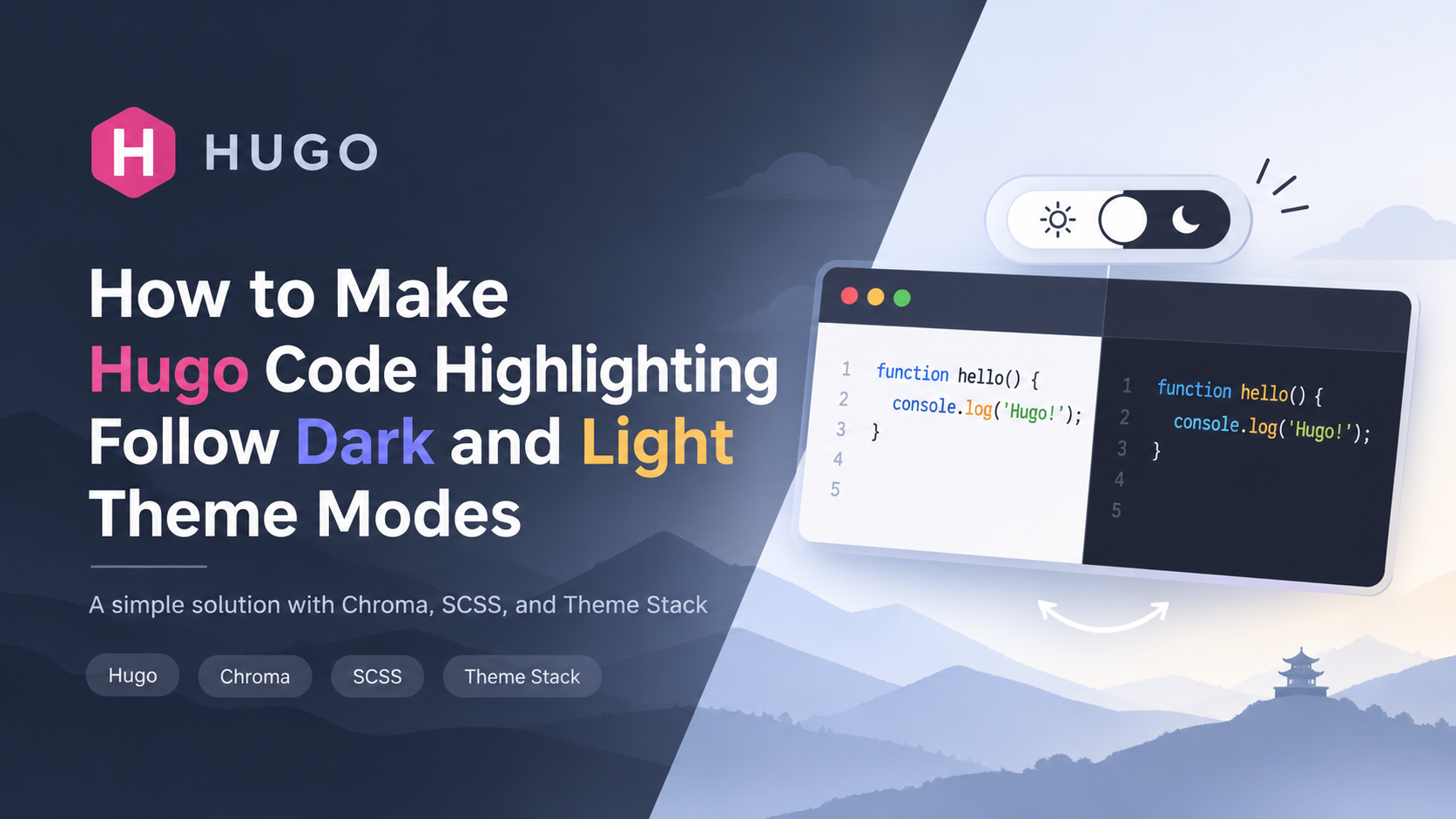
When building a blog with Hugo, many modern themes, including hugo-theme-stack, provide built-in Dark and Light mode switching.
However, there is a common issue that can easily go unnoticed: the page theme changes, but the code blocks keep their original syntax highlighting colors.
For example, after switching to Dark Mode, the page background becomes dark, but code blocks still use a white background with light-theme syntax colors.
This creates an inconsistent visual experience and can make code harder to read.
In this article, I’ll show you how to solve this problem using Hugo’s built-in Chroma highlighting engine, two static CSS themes, and SCSS.
The solution requires no additional JavaScript highlighting libraries and introduces no extra client-side code processing.
1. Why Doesn’t Hugo Code Highlighting Follow Theme Changes?
Hugo uses Chroma as its built-in syntax highlighting engine. It generates highlighted HTML during the site build process.
Chroma supports two main output modes:
- Inline Styles: Color information is written directly into the HTML elements through their
styleattributes. - CSS Classes: Syntax elements receive CSS classes, while external stylesheets control their appearance.
When inline styles are enabled, the generated HTML may look something like this:
<div class="highlight">
    <pre style="color:#24292e;background-color:#fff">
        ...
    </pre>
</div>
This creates a problem.
The code block’s colors are already embedded in the generated HTML. When the frontend theme changes, updating CSS classes or HTML attributes cannot easily override those inline styles using ordinary CSS rules.
The solution is straightforward:
Configure Chroma to use CSS classes instead of inline styles.
Once this is done, we can control syntax highlighting entirely through CSS.
2. The Solution: Use Two Static CSS Themes
The implementation consists of four steps:
- Disable Chroma’s inline styles.
- Generate separate light and dark syntax highlighting stylesheets.
- Use Hugo Theme Stack’s theme attribute to control the active styles.
- Scope the dark theme styles using SCSS.
The following example uses hugo-theme-stack.
Step 1: Update Your Hugo Configuration
Open your project’s hugo.toml (or config.toml) and add the following configuration:
[markup]
  [markup.highlight]
    noClasses = false
    codeFences = true
    guessSyntax = true
The most important setting is:
noClasses = false
This tells Hugo to generate CSS classes for syntax highlighting instead of embedding colors directly into HTML elements.
Keep in mind:
falseenables CSS class-based highlighting.trueenables inline styles.- This configuration belongs under
[markup.highlight], not inside[params].
Step 2: Generate Two Chroma Stylesheets
Hugo includes a built-in command for generating Chroma stylesheets.
Run the following commands from your project root:
# Generate the light theme
hugo gen chromastyles --style=github > assets/scss/syntax-light.scss

# Generate the dark theme
hugo gen chromastyles --style=github-dark > assets/scss/syntax-dark.scss
The two styles used here are:
github: A syntax highlighting theme designed for light backgrounds.github-dark: A syntax highlighting theme designed for dark backgrounds.
Important: We use the .scss extension instead of .css so that Sass can process and inline these files when importing them. This is necessary for the nested SCSS import in the next step.
If the assets/scss/ directory does not exist, create it first:
mkdir -p assets/scss
You can also choose other Chroma styles that better match your website’s design.
Step 3: Update custom.scss
hugo-theme-stack provides an extension point for custom styles through assets/scss/custom.scss.
Open or create this file and add the following code:
/* ==========================================
   Chroma Syntax Highlighting Theme Switching
   ========================================== */

// 1. Use the light syntax highlighting theme by default
@import "syntax-light";

// 2. Switch to the dark syntax highlighting theme
//    when Hugo Theme Stack enables Dark Mode
html[data-scheme="dark"] {
    @import "syntax-dark";
}
The important part is:
html[data-scheme="dark"] {
    @import "syntax-dark";
}
Because syntax-dark.scss is an SCSS file, Sass processes its contents and nests the generated CSS rules within the specified selector scope.
The resulting CSS will behave similarly to this:
.chroma {
    /* Light Mode styles */
}

html[data-scheme="dark"] .chroma {
    /* Dark Mode styles */
}
This gives us two independent sets of syntax highlighting styles:
- Light Mode: Uses
syntax-light.scss. - Dark Mode: Uses
syntax-dark.scss.
When users switch themes, the browser simply applies the matching CSS rules based on the HTML attribute.
Background color adjustment
If the code block background is still being overridden by the theme’s default styles, inspect the computed CSS rules using your browser’s developer tools.
For example, if your dark Chroma theme uses #24292e as its background color, you can add:
html[data-scheme="dark"] {
    .highlight,
    .chroma {
        background-color: #24292e;
    }
}
Adjust the selectors and background color according to your actual generated Chroma styles and theme structure.
Avoid adding !important everywhere unless there is a specific CSS conflict that requires it.
Step 4: Rebuild and Verify
After updating the configuration and SCSS files, restart your Hugo development server:
hugo server --disableFastRender
To verify that everything is working, open your browser’s developer tools and inspect a code block.
With noClasses = false correctly configured, the generated HTML should look similar to this:
<div class="highlight">
    <div class="chroma">
        <pre tabindex="0" class="chroma">
            ...
        </pre>
    </div>
</div>
The exact HTML structure may vary depending on your Hugo version, Markdown rendering configuration, and theme templates.
The important thing is that syntax highlighting colors should now be controlled by CSS classes rather than inline style attributes.
Now switch between the two theme modes:
- Light Mode: Code blocks should display the GitHub light color scheme.
- Dark Mode: Code blocks should display the GitHub Dark color scheme.
If the changes do not appear immediately, try a hard refresh:
- Windows/Linux:
Ctrl + Shift + R - macOS:
Cmd + Shift + R
Also check whether Hugo has successfully rebuilt your custom SCSS.
3. Common Questions
Q1: Why Doesn’t Syntax Highlighting Change After Setting noClasses = false?
First, make sure Hugo is loading the correct configuration file.
Then inspect the generated HTML:
- If syntax colors are still defined through inline
styleattributes, the configuration may not have been applied. - If elements have classes such as
.chromaor.hl, Chroma is already using class-based highlighting. The next step is to check whether your CSS is being loaded correctly.
Q2: Why Are Code Blocks Still White in Dark Mode?
There are usually two possible reasons:
- The dark syntax stylesheet was not imported or generated correctly.
- The theme’s default code block background styles are overriding Chroma’s background settings.
Use your browser’s developer tools to inspect the computed styles of .highlight and .chroma. This will help identify which CSS rule is actually taking effect.
Q3: Do I Need Prism.js or Highlight.js?
No.
Hugo already handles syntax highlighting through Chroma during the build process.
Once Chroma uses CSS classes, you can control the colors entirely through static stylesheets. There is no need to introduce another client-side syntax highlighting library.
4. Conclusion
The reason Hugo code highlighting often fails to follow Dark/Light theme changes is usually not the theme switcher itself, but how syntax highlighting styles are generated.
The solution comes down to three key steps:
- Set
noClasses = falseto make Chroma use CSS classes. - Generate separate light and dark stylesheets with
hugo gen chromastyles. - Use
html[data-scheme="dark"]and SCSS to scope dark theme styles.
This approach offers several advantages:
- Fully static: No additional JavaScript highlighting libraries are required.
- Lightweight: Syntax highlighting is handled during Hugo’s build process.
- Maintainable: Light and dark color schemes are managed independently.
- Theme-friendly: It integrates directly with Hugo Theme Stack’s existing
data-schemeattribute.
For developers building technical blogs with Hugo and hugo-theme-stack, this is a simple, lightweight, and maintainable way to keep code highlighting consistent across theme modes.