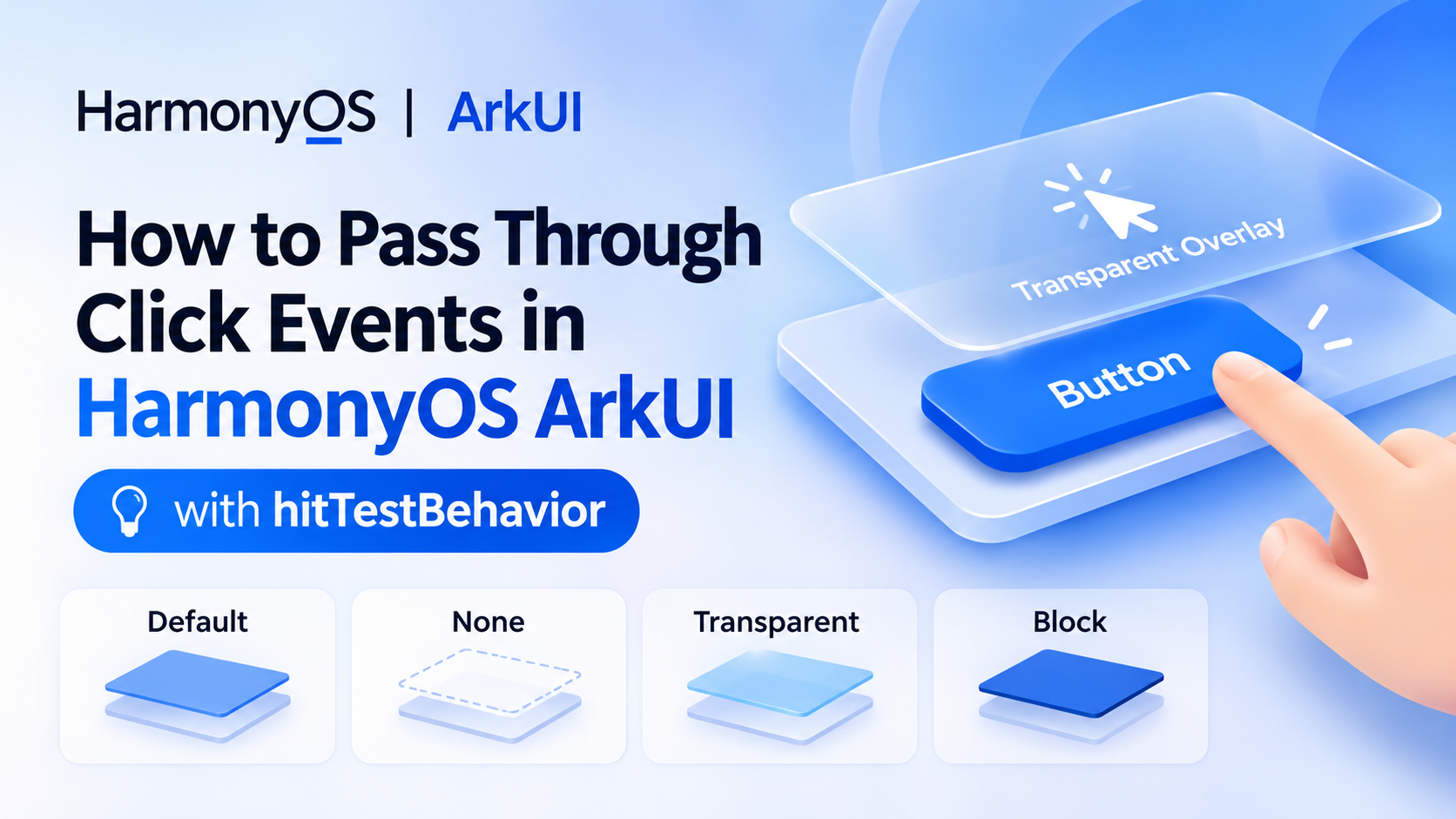
In HarmonyOS application development, you may encounter situations where an upper component intercepts touch events, preventing underlying components from receiving click events.
For example:
- A transparent overlay prevents users from clicking buttons underneath it.
- A decorative component intercepts touch events even though it does not need interaction.
- A floating component needs to allow clicks to reach underlying components.
- Multiple overlapping components require more flexible touch event handling.
In ArkUI, these scenarios can be handled using the hitTestBehavior property.
This article explains how to use hitTestBehavior and its four common modes to control touch event hit testing.
1. Understanding hitTestBehavior
hitTestBehavior is an ArkUI component property that controls how a component participates in touch hit testing.
It determines whether a component and its children participate in hit testing and how touch events are handled when multiple components overlap.
The property accepts values from the HitTestMode enumeration.
.hitTestBehavior(HitTestMode.Default)
The four commonly used modes are:
| Mode | Description |
|---|---|
HitTestMode.Default | Uses the default hit-testing behavior. |
HitTestMode.None | Excludes the component and its subtree from hit testing. |
HitTestMode.Transparent | Allows the component and relevant underlying components to participate in hit testing. |
HitTestMode.Block | Blocks hit testing from continuing to components underneath it. |
Understanding the differences between these modes is essential when implementing event pass-through behavior.
2. HitTestMode.Transparent: Allow Events to Pass Through
If you want an upper component to participate in touch handling while also allowing underlying components to receive touch events, use HitTestMode.Transparent.
For example, consider a Stack containing two overlapping components.
Stack() {
  Button('Underlying Button')
    .width(200)
    .height(60)

  Row() {
    Text('Transparent Overlay')
      .fontColor(Color.White)
  }
  .width('100%')
  .height('100%')
  .backgroundColor('#66000000')
  .hitTestBehavior(HitTestMode.Transparent)
}
.width('100%')
.height('100%')
In this example, the upper Row uses HitTestMode.Transparent.
This allows the underlying component to participate in hit testing rather than being completely blocked by the overlay.
Typical use cases:
- Transparent overlays.
- Decorative components placed above interactive content.
- Floating UI elements that should not completely block underlying interactions.
Note that Transparent does not mean that every event is automatically delivered to every overlapping component. The final event dispatch behavior also depends on the component hierarchy and hit-testing rules.
3. HitTestMode.None: Completely Ignore Touch Hit Testing
If a component should not participate in touch hit testing at all, use HitTestMode.None.
For example:
Image($r('app.media.icon'))
  .width(100)
  .height(100)
  .hitTestBehavior(HitTestMode.None)
The component and its descendants are excluded from hit testing.
As a result, underlying interactive components can receive touch events when they are otherwise eligible.
Typical use cases:
- Decorative images.
- Background elements.
- Non-interactive overlays.
- UI components that should never intercept user input.
This is generally the most straightforward option when an entire component subtree should be ignored during touch hit testing.
4. HitTestMode.Block: Prevent Events from Reaching Underlying Components
Sometimes you need the opposite behavior: an upper component should intercept touch interactions and prevent underlying components from receiving them.
In this case, use HitTestMode.Block.
Stack() {
  Button('Underlying Button')
    .width(200)
    .height(60)

  Column() {
    Text('Interaction Blocked')
      .fontColor(Color.White)
  }
  .width('100%')
  .height('100%')
  .backgroundColor('#66000000')
  .hitTestBehavior(HitTestMode.Block)
}
.width('100%')
.height('100%')
The upper component blocks hit testing from continuing to underlying components in the overlapping area.
Typical use cases:
- Modal overlays.
- Loading masks.
- Interaction-blocking layers.
- Preventing users from interacting with background content while a dialog is displayed.
5. HitTestMode.Default: Use the Default Behavior
HitTestMode.Default is the default hit-testing mode.
Button('Click Me')
  .hitTestBehavior(HitTestMode.Default)
When this mode is used, ArkUI follows its normal hit-testing and event-dispatch rules.
For most ordinary UI components, there is no need to explicitly configure this property.
6. Comparison of the Four Modes
The following table summarizes when to use each mode:
| Mode | Participates in hit testing | Underlying components |
|---|---|---|
Default | Default behavior | Follows normal hit-testing rules |
None | No, including descendants | Can receive events |
Transparent | Yes | Can also participate |
Block | Yes | Blocked from receiving events through that hit-test path |
A practical selection guide:
- Want the component to be completely ignored? Use
None. - Want the component and underlying components to participate? Use
Transparent. - Want to block interactions underneath? Use
Block. - Want normal ArkUI behavior? Use
Default.
7. Important Notes
When implementing touch event pass-through, keep the following points in mind.
7.1 Transparent Does Not Mean Event Bubbling
HitTestMode.Transparent is related to hit testing, not simply event bubbling.
ArkUI has its own event dispatch mechanism. Event bubbling, event interception, and hit testing are different concepts.
If your requirement is to allow an underlying sibling component to receive a click, configure the hit-testing behavior appropriately instead of relying only on event bubbling.
7.2 Consider the Component Hierarchy
The final hit-testing result depends on the layout hierarchy.
For example, when using Stack, multiple components can occupy the same position. Their hit-testing behavior determines which components are eligible to receive touch events.
For Row and Column, components are generally arranged sequentially, so overlapping behavior may be less relevant.
7.3 Test on the Target HarmonyOS Version
ArkUI APIs and interaction behavior may vary across SDK versions.
When implementing more complex overlays or custom components, verify the behavior using the target HarmonyOS SDK and actual device testing.
8. Conclusion
In HarmonyOS ArkUI, hitTestBehavior provides a convenient way to control how components participate in touch hit testing.
The most important thing is to choose the correct HitTestMode according to the interaction requirement:
Default: Follow the default behavior.None: Completely ignore hit testing.Transparent: Allow underlying components to participate in hit testing.Block: Prevent interactions from reaching underlying components.
For most click-through scenarios, None and Transparent are the two modes worth understanding first.
Choosing the correct mode can help avoid unnecessary event interception and make overlapping UI components easier to manage.